
Click Here to Download
October 2026 Updates
What's New
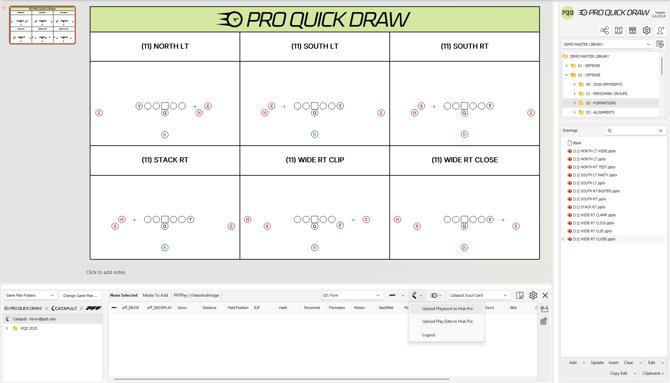
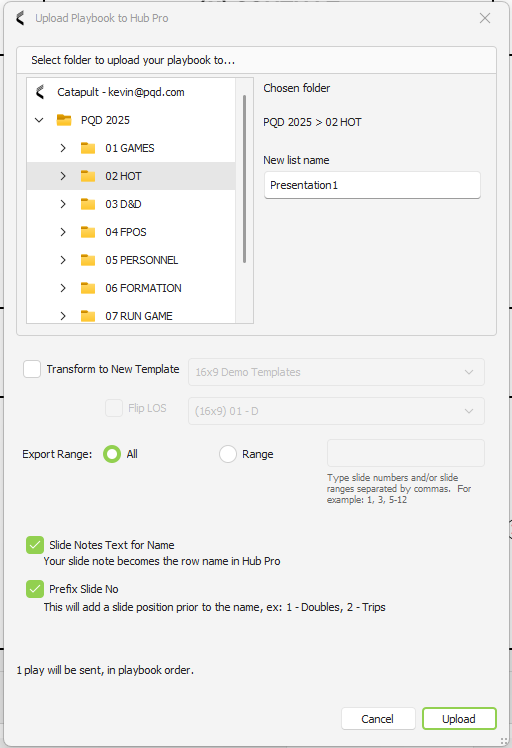
Catapult HubPro Export
Export your PQD playbooks — including drawings and video — straight to HubPro.
Important: Must have Catapult Integrations Package. If not sure, please contact your Account Owner.
New PFF Bulk Import Process
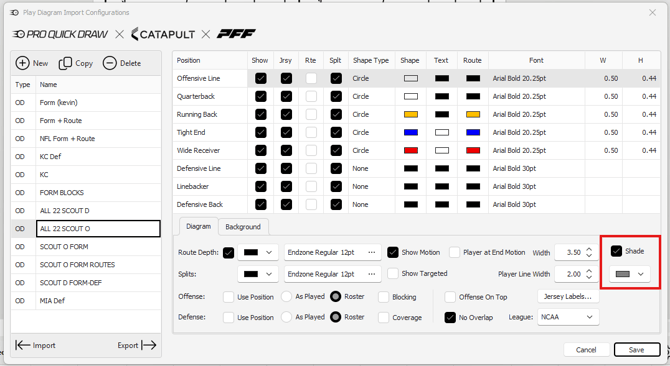
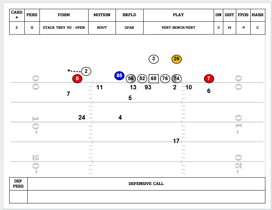
A new import engine speeds up PFF data imports. Also added: the ability to import shades for DL alignment on OL. Ability to Bulk Import plays from a cutup directly into an editing mode. This will carry the data from the imported play as well when adding to a template. Then export drawings directly into a Template.
Important: Must have Catapult Integrations Package. If not sure, please contact your Account Owner.
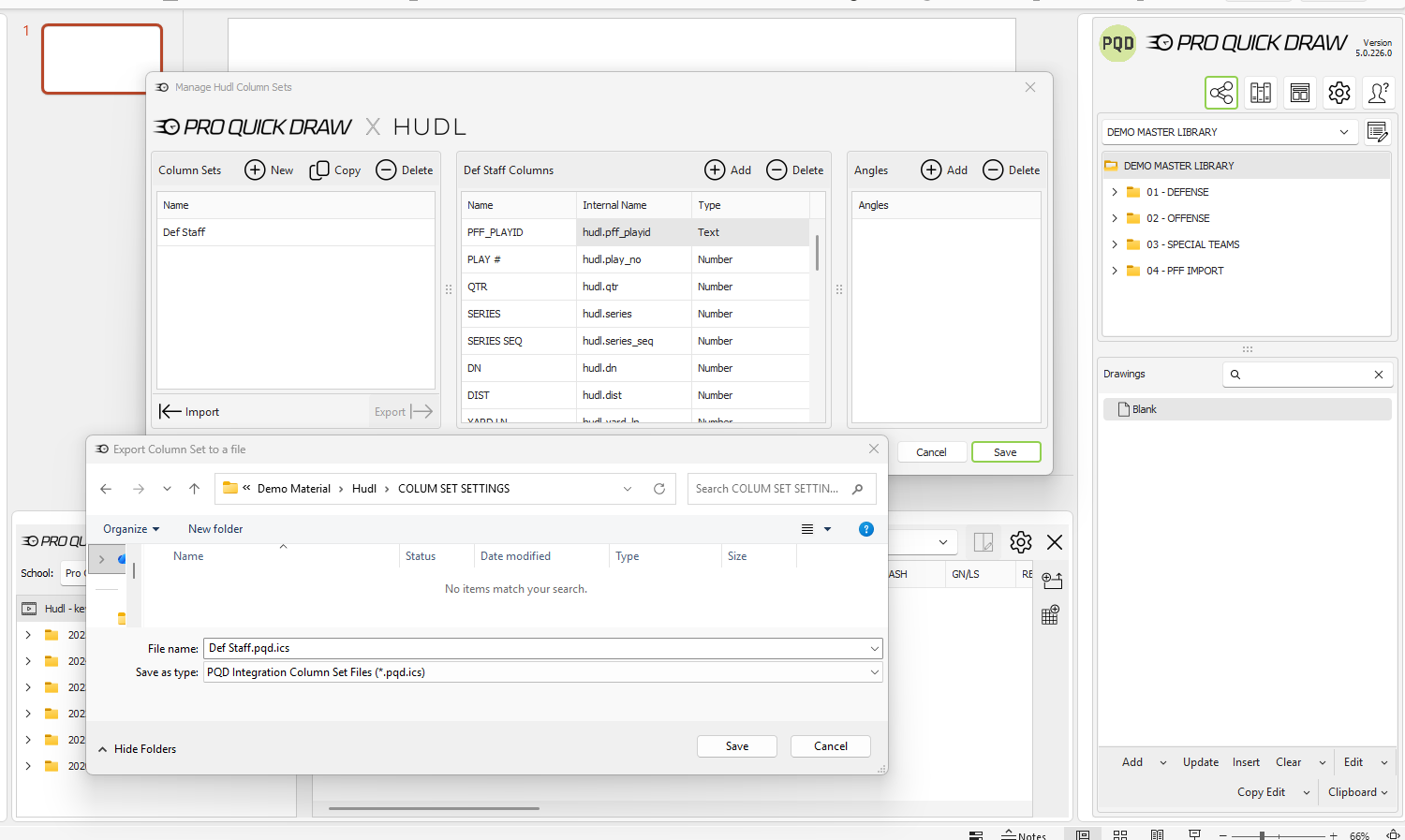
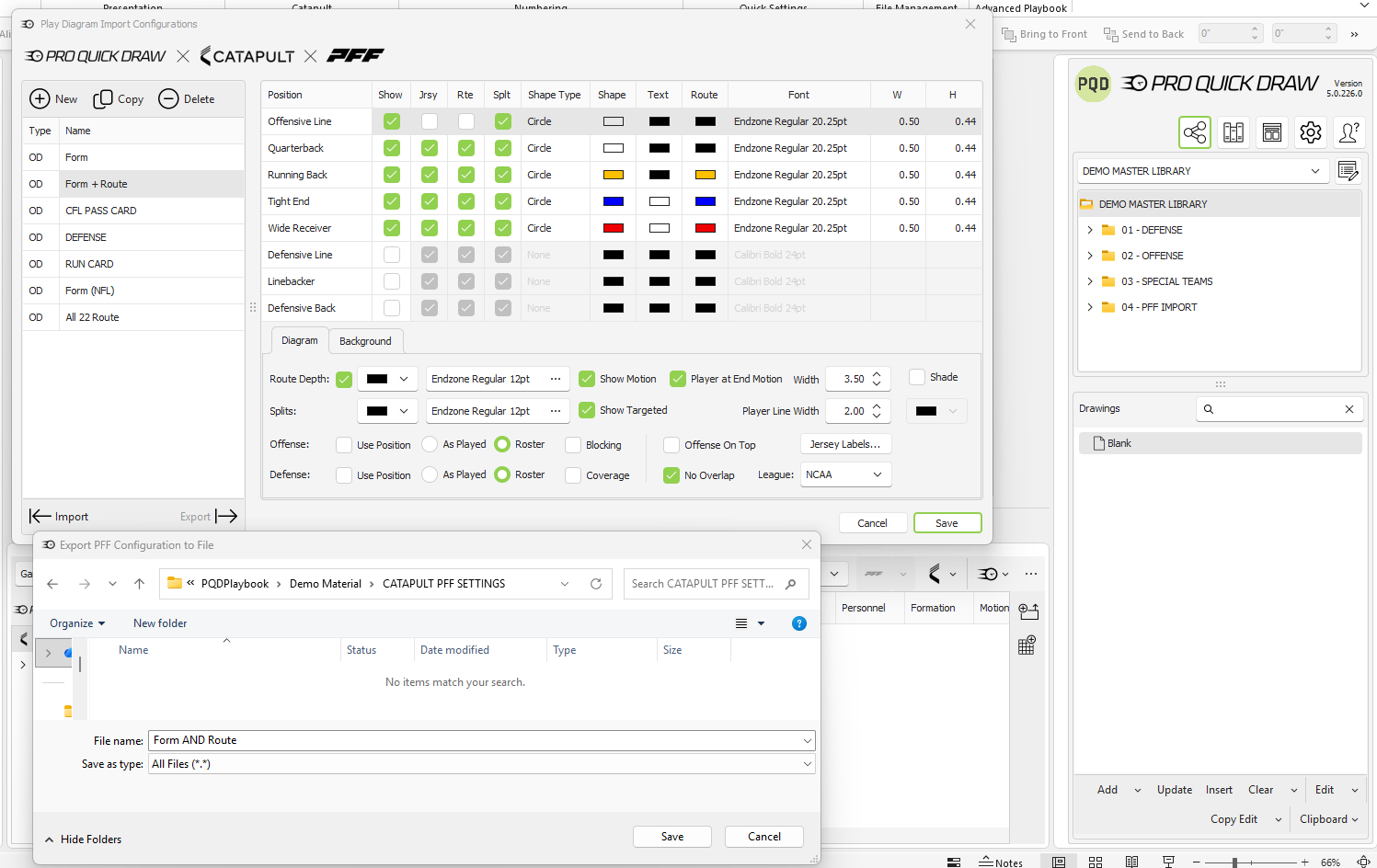
Import Export Catapult/PFF/Hudl/QwikCut Settings
Use an existing configuration set to export and then import to another machine. These are for:
-
- Catapult/PFF Integration
- PFF Mapping Configurations
- Catapult Library
- All Integrations
- Column Sets
- Catapult/PFF Integration
Important: Must have Catapult/Hudl/Qwik Cut Integrations Package. If not sure, please contact your Account Owner.
Playbook Manager
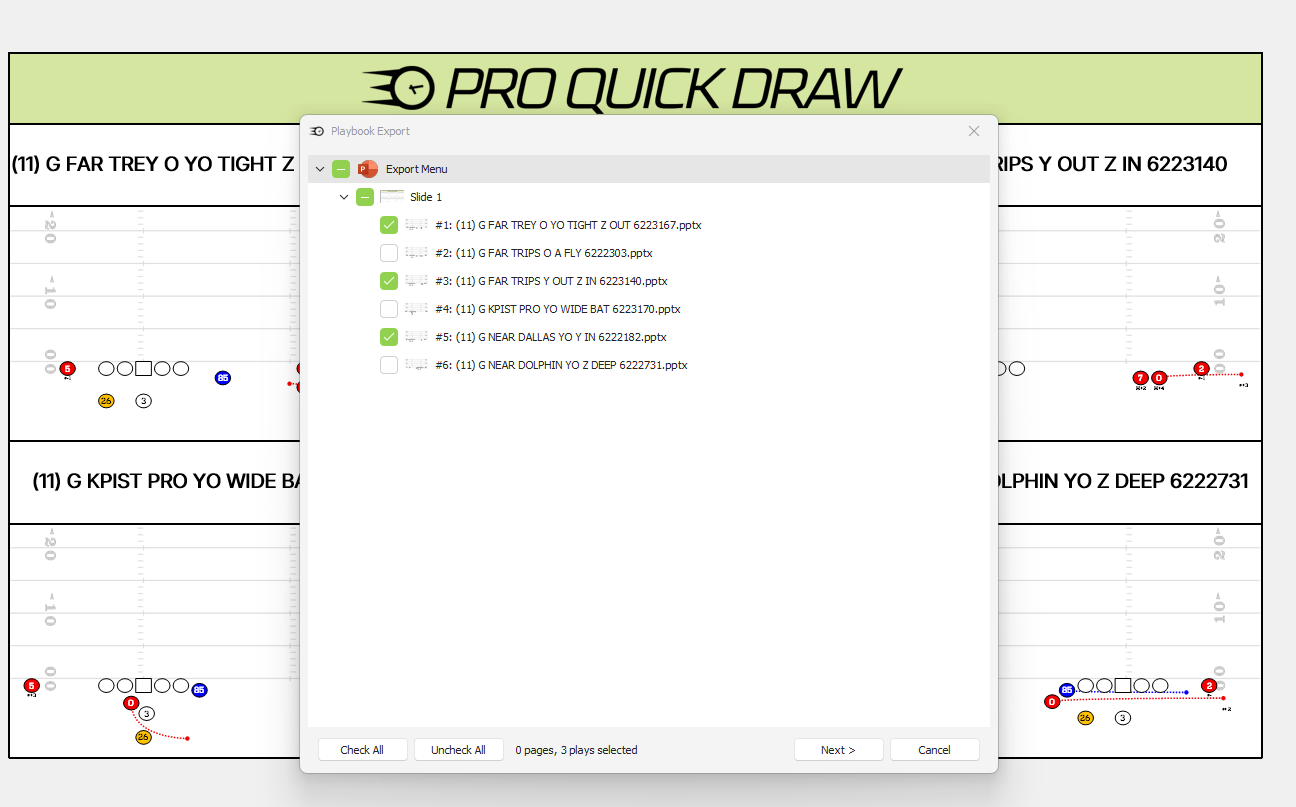
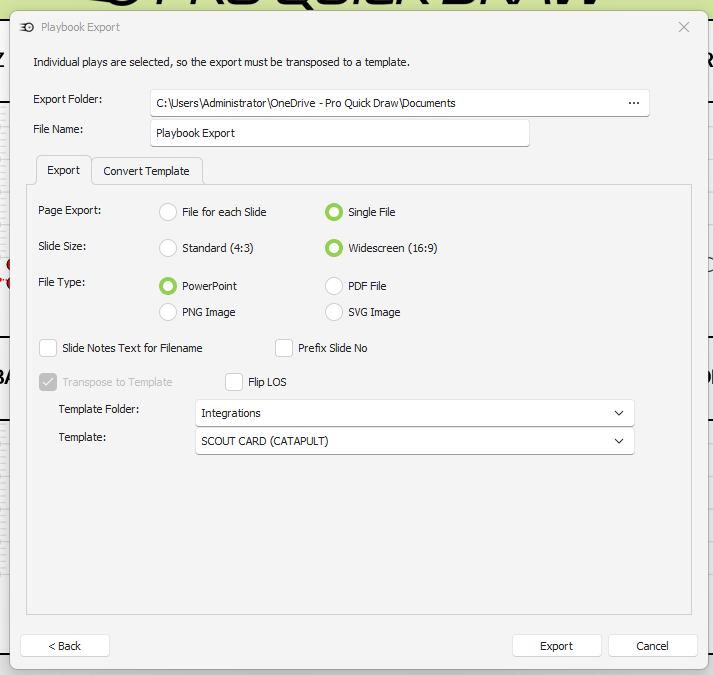
Build presentations and documents in an organized Tree View. Choose a template, add your files, and insert or update diagrams when your playbook changes. The new Export menu enables users to export individual slots to a new template or a PowerPoint Presentation.
Important: Must be an NFL/CFL/FBS Customer
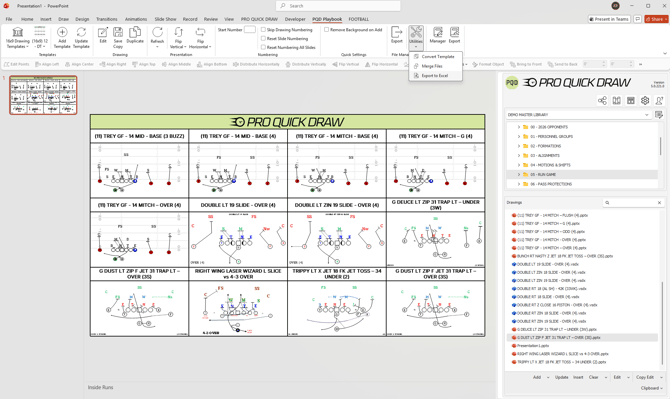
Export Play Titles to Excel
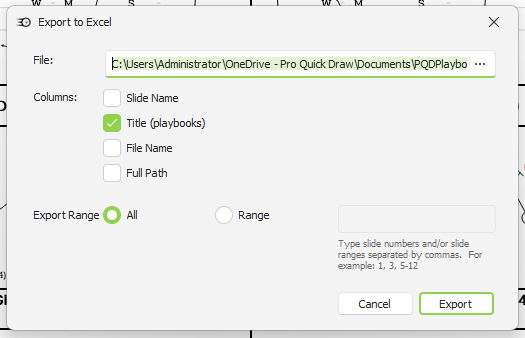
Select the pages and plays you need, then export their slot titles to an Excel spreadsheet. Build call sheets and practice scripts without retyping play names.
Merge Playbooks: Append Option
When merging playbooks, you can now choose to append the incoming document to your currently open playbook instead of replacing it.
Flip Visio Diagrams within PowerPoint
Insert a Visio Diagram into a PowerPoint template and be able to flip the diagram either vertically or horizontally.
More Details
Export to Excel
-
You can now export slot titles directly to an Excel spreadsheet — pick the pages and plays you want, and Pro Quick Draw will build the sheet for you. Great for building call sheets or practice scripts without retyping play names by hand.
HubPro Export
- Using the Catapult Integration within Visio or PowerPoint will enable users to send playbooks and/or video from PQD directly to Catapult HubPro.
- After creating a presentation, select the Catapult Icon within the Playlist menu at the bottom and select Upload Playbook or Playlist. This will create a new playlist after you have selected the output folder
New PFF Bulk Import Process
- Users can now Import PFF Diagrams at a higher speed along with a new workflow enabling a user to put the content directly into an edit mode by importing a playlist at once. This will drop the diagrams into individual slides or pages that enable a user to begin making edits without having the edit each individual drawing within a template.
- Users can then export each diagram using the Play Editor Export button to an output folder. When doing this, the Catapult Thunder Data will migrate with the play diagram then enabling a user to easily add their diagrams to templates in a much more efficient process.
Import Export Catapult/PFF/Hudl/QwikCut Settings
- Users can now export setting from their video integration program and use the files created to import for a new or existing user to have the same settings. This works for Column Sets, PFF Mappings and Catapult Library Settings.
Playbook Manager
- Users have the ability to create presentations or documents by way of a organized Tree View. Select your template, add/update and begin to add your files here. This enables a new method of adding diagrams to a file or even updating if you need to make a quick change.
- Select the Manager Button on the PQD Playbook Ribbon to enable this menu.
This is currently only available for our NFL/CFL/FBS Customers
Updated Export Menu
The updated Export button will enable users to select one or multiple slots to export either to PowerPoint or Convert to a new Template.
Import Shades on a PFF Drawing
Bug Fixes
- Fixed an error that could occur when selecting a template from the Select Template form.
- Fixed PowerPoint Play Editor's "Match Color" so it now matches on AutoShapes, not just visible text.
- Fixed a crash when editing a Visio playbook with no active template.
- Fixed an issue where the first drawing added to a page could be placed in the wrong spot.
- Fixed misaligned background images in Visio video exports.
- Added logging to help resolve cases where SharePoint couldn't locate a play.
- Fixed a duplicate-column error during Accel export.
- Fixed a crash in Visio when using "Flip Horizontal."
- Visio Play Editor exports now carry over metadata from Catapult correctly.
- Fixed Visio's flip-drawing behavior so it's based on the page, not individual shapes.
- Fixed an issue where Catapult PFF drawings from Visio weren't visible in PowerPoint.
- Fixed a crash when refreshing play data for Catapult PFF drawings in PowerPoint.
- Fixed Accel export so the Visio background now displays correctly in Accel templates.
- PFF imports now lock the background automatically during import.
- Fixed an issue in the Visio Template Editor that prevented changing a drawing's group number.
- Fixed incorrect sizing/scaling of routes in Visio SVG exports.
- Fixed a crash when exporting a blank Visio page to PNG.
- Fixed an out-of-memory crash during Accel hand-draw export.
- Fixed a HubPro issue preventing larger playbooks from uploading.
- Fixed an issue where angles weren't respected when adding plays to Media Images.
- Fixed an issue in Visio where editing a selected slot shape incorrectly showed "no slot shape selected."