---
title: How to Convert a Visio Template to a PowerPoint Template
description: The updated Convert to PowerPoint button will enable a user to export their Visio drawings into a PowerPoint Pro Quick Draw Template give the user full PQD capabilities once their diagram has been converted.
---
[Skip to content](https://help.proquickdraw.com/helpcenter/how-to-convert-a-visio-template-to-a-powerpoint-template#main-content)
English
Show submenu for translations
[](https://www.proquickdraw.com?hsLang=en)
- [Homepage](http://www.proquickdraw.com/)
- [Customer Dashboard](https://dashboard.pqdcloud.com/)
Open main navigation
Close main navigation
- [Homepage](http://www.proquickdraw.com/)
- [Customer Dashboard](https://dashboard.pqdcloud.com/)
- English
Show submenu for translations
- [Contact Support](http://www.proquickdraw.com/contact-support)
[Contact Support](http://www.proquickdraw.com/contact-support?hsLang=en)
How Can We Help?
- There are no suggestions because the search field is empty.
1. [Help Center](https://help.proquickdraw.com/helpcenter?hsLang=en)
2. [Playbook (Visio)](https://help.proquickdraw.com/helpcenter/playbook-visio?hsLang=en)
3. [Getting Started](https://help.proquickdraw.com/helpcenter/playbook-visio?hsLang=en#getting-started)
June 25, 2025
# How to Convert a Visio Template to a PowerPoint Template
## The updated Convert to PowerPoint button will enable a user to export their Visio drawings into a PowerPoint Pro Quick Draw Template give the user full PQD capabilities once their diagram has been converted.
### What is it?
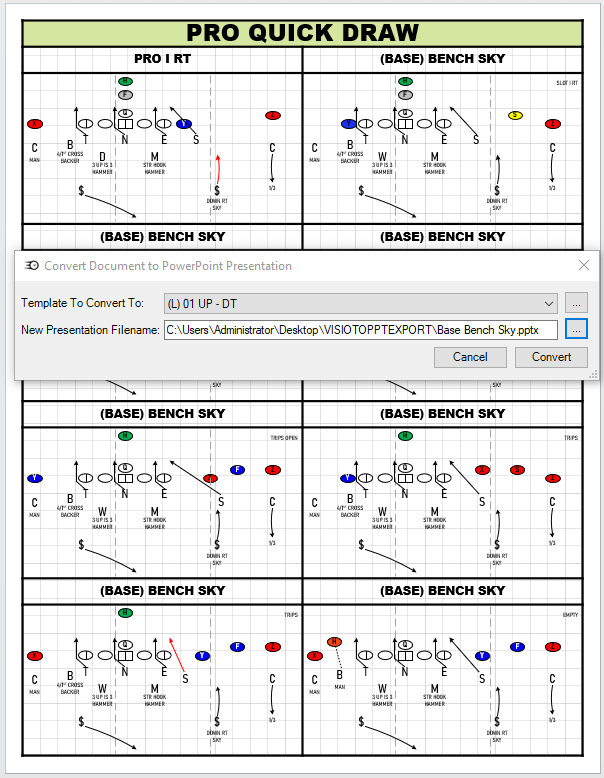
A button on the PQD Ribbon that will enable a user to convert a Visio template into a PowerPoint Pro Quick Draw Template.

### Why does it matter?
Previously, users could export their Visio documents to PowerPoint, but the result was a static PNG image that lacked editing capabilities. If any changes were needed, users had to return to Visio, make the adjustments, and re-export the document.
Now, with the new process, users can easily select a PowerPoint template from the button and export their Visio content directly as a fully editable PowerPoint template. This streamlined workflow is particularly beneficial for coaching staffs who need to quickly convert Visio materials into PowerPoint for sharing with team members or staff.
### How does it work?
1. Create your document using a Visio Pro Quick Draw Template
2. Click the Convert to PowerPoint button within the PQD Ribbon.
3. Select your template (if you need to map to the correct templates folder, click the three dots and select the correct folder.)
4. Click the three dots to the right of the **File Name** to name your file and choose the export location.
5. Click **Convert**.
6. When completed, you will have an option to Show in folder or Open the new document.
- [Account & Dashboard Setup](https://help.proquickdraw.com/helpcenter/account-dashboard-setup?hsLang=en#main-content)
- [Dashboard Management](https://help.proquickdraw.com/helpcenter/account-dashboard-setup?hsLang=en#dashboard-management)
- [Subscription Management](https://help.proquickdraw.com/helpcenter/account-dashboard-setup?hsLang=en#subscription-management)
- [Playbook (PowerPoint)](https://help.proquickdraw.com/helpcenter/playbook-powerpoint?hsLang=en#main-content)
- [Set Up Installation Packages](https://help.proquickdraw.com/helpcenter/playbook-powerpoint?hsLang=en#set-up-installation-packages)
- [Configure Your Libraries](https://help.proquickdraw.com/helpcenter/playbook-powerpoint?hsLang=en#configure-your-libraries)
- [Ribbon Bar Tools](https://help.proquickdraw.com/helpcenter/playbook-powerpoint?hsLang=en#ribbon-bar-tools)
- [Making Custom Templates](https://help.proquickdraw.com/helpcenter/playbook-powerpoint?hsLang=en#making-custom-templates)
- [Playbook (Mac)](https://help.proquickdraw.com/helpcenter/playbook-mac?hsLang=en#main-content)
- [Mac Version](https://help.proquickdraw.com/helpcenter/playbook-mac?hsLang=en#mac-version)
- [Playbook (Visio)](https://help.proquickdraw.com/helpcenter/playbook-visio?hsLang=en#main-content)
- [Getting Started](https://help.proquickdraw.com/helpcenter/playbook-visio?hsLang=en#getting-started)
- [Building My Master Library](https://help.proquickdraw.com/helpcenter/playbook-visio?hsLang=en#building-my-master-library)
- [Building My Template Library](https://help.proquickdraw.com/helpcenter/playbook-visio?hsLang=en#building-my-template-library)
- [Play Editor (PowerPoint)](https://help.proquickdraw.com/helpcenter/play-editor-powerpoint?hsLang=en)
- [Play Editor (Visio)](https://help.proquickdraw.com/helpcenter/play-editor-visio?hsLang=en)
- [Cutup Generator (Local Version)](https://help.proquickdraw.com/helpcenter/cutup-generator-local-version?hsLang=en)
- [Cutup Generator (Web Version)](https://help.proquickdraw.com/helpcenter/cutup-generator-web-version?hsLang=en#main-content)
- [Initial Setup and Getting Started](https://help.proquickdraw.com/helpcenter/cutup-generator-web-version?hsLang=en#initial-setup-and-getting-started)
- [Integrating Your Video Platform](https://help.proquickdraw.com/helpcenter/cutup-generator-web-version?hsLang=en#integrating-your-video-platform)
- [Projects](https://help.proquickdraw.com/helpcenter/cutup-generator-web-version?hsLang=en#projects)
- [Cutup Definitions](https://help.proquickdraw.com/helpcenter/cutup-generator-web-version?hsLang=en#cutup-definitions)
- [Column Sets](https://help.proquickdraw.com/helpcenter/cutup-generator-web-version?hsLang=en#column-sets)
- [Folder Rules](https://help.proquickdraw.com/helpcenter/cutup-generator-web-version?hsLang=en#folder-rules)
- [Filters](https://help.proquickdraw.com/helpcenter/cutup-generator-web-version?hsLang=en#filters)
- [Sort Rules](https://help.proquickdraw.com/helpcenter/cutup-generator-web-version?hsLang=en#sort-rules)
- [Working the Grid](https://help.proquickdraw.com/helpcenter/cutup-generator-web-version?hsLang=en#working-the-grid)
- [Watching Video](https://help.proquickdraw.com/helpcenter/cutup-generator-web-version?hsLang=en#watching-video)
- [AdHoc Playlists](https://help.proquickdraw.com/helpcenter/cutup-generator-web-version?hsLang=en#adhoc-playlists)
- [Title Slides](https://help.proquickdraw.com/helpcenter/cutup-generator-web-version?hsLang=en#title-slides)
- [Charts and Stats](https://help.proquickdraw.com/helpcenter/cutup-generator-web-version?hsLang=en#charts-and-stats)
- [Settings and Troubleshooting](https://help.proquickdraw.com/helpcenter/cutup-generator-web-version?hsLang=en#settings-and-troubleshooting)
- [Accel](https://help.proquickdraw.com/helpcenter/accel?hsLang=en)
- [Catapult Integration](https://help.proquickdraw.com/helpcenter/catapult-integration?hsLang=en)
- [Hudl Integration](https://help.proquickdraw.com/helpcenter/hudl-integration?hsLang=en)
- [Qwikcut Integration](https://help.proquickdraw.com/helpcenter/qwikcut-integration?hsLang=en)
- [GoArmy Edge Integration](https://help.proquickdraw.com/helpcenter/goarmy-edge-integration?hsLang=en)
- [GoRout Integration](https://help.proquickdraw.com/helpcenter/gorout-integration?hsLang=en)
- [Troubleshooting & FAQs](https://help.proquickdraw.com/helpcenter/troubleshooting-faqs?hsLang=en#main-content)
- [Download & Installation](https://help.proquickdraw.com/helpcenter/troubleshooting-faqs?hsLang=en#download-installation)
- [Templates](https://help.proquickdraw.com/helpcenter/troubleshooting-faqs?hsLang=en#templates)
- [Master Library](https://help.proquickdraw.com/helpcenter/troubleshooting-faqs?hsLang=en#master-library)
- [Formatting](https://help.proquickdraw.com/helpcenter/troubleshooting-faqs?hsLang=en#formatting)
- [Integrations](https://help.proquickdraw.com/helpcenter/troubleshooting-faqs?hsLang=en#integrations)
- [Release Notes](https://help.proquickdraw.com/helpcenter/release-notes?hsLang=en)
[](https://WWW.PROQUICKDRAW.COM)
Copyright © 2026, Pro Quick Draw
Follow us on Social Channels for important announcements and workflow ideas.
Cookie Settings
```json
{
"@context" : "https://schema.org",
"@type" : "VideoObject",
"caption" : {
"@type" : "MediaObject",
"contentUrl" : "https://help.proquickdraw.com/media-transcripts/191808263978/en.vtt",
"inLanguage" : "en",
"name" : "en Captions"
},
"contentUrl" : "https://stream.mux.com/BUELT02TXdaSQMkFulTK6SuY5LT71ZiqmsiaWP01cG3m00/capped-1080p.mp4",
"dateModified" : "2025-06-25T15:39:00.904Z",
"duration" : "PT1M33S",
"height" : 1080,
"name" : "Convert to PowerPoint Update",
"thumbnailUrl" : "https://7363726.fs1.hubspotusercontent-na1.net/hubfs/7363726/Convert%20to%20PowerPoint%20Update.mp4/medium.jpg",
"uploadDate" : "2025-06-25T15:38:50.852Z",
"width" : 1920
}
```