
You must have the GoRout Integration in Playbook for this to work. If you do not, please reach out to our sales team.
Once you have the integration enabled, you first need to setup your practice in GoRout Scout.
Login to GoRout in a web browser.

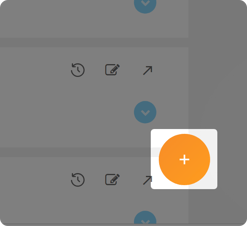
Once logged in, you need to create a practice. This practice is where you will send your drawings. For example you may be looking to send your drawings for a skelly period. To create a practice click on the + inside the orange circle to the bottom right of the screen.
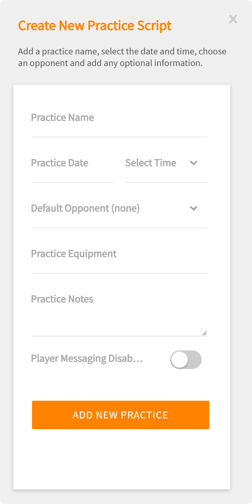
Then complete the practice form (Practice Name, Practice Date and Select Time are required fields) - Once complete click Add New Practice
You will then see your new practice setup. Click the blue arrow to expand your practice.


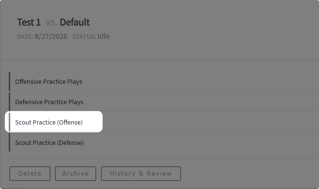
Once you expand you will see 4 options to the left of the expanded section. You would choose Scout Practice Offense or Defense.
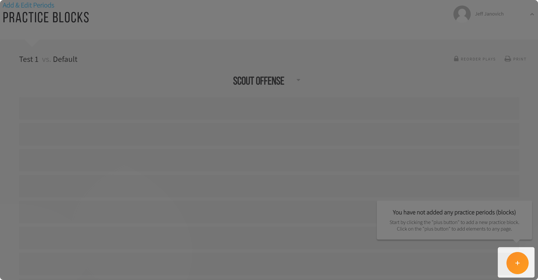
Once you select where you plan to import and use your plays you will see a Practice Blocks screen. Click the + orange circle to create your practice block.
You would give your Practice Block a name (this can be anything you want) and click Add New Block
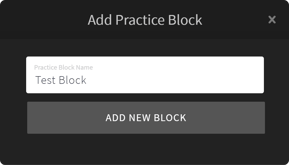
Once that block is created, you are ready to head into your Playbook.
You can use a 1 up template, remember for this purpose you only want 1 play per slide.
In Playbook click the Integrations button and select GoRout from the menu
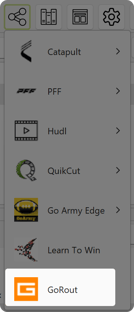
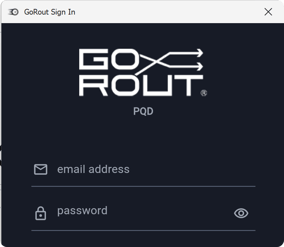
You will be prompted to login to your GoRout account (this is your GoRout email address and password)
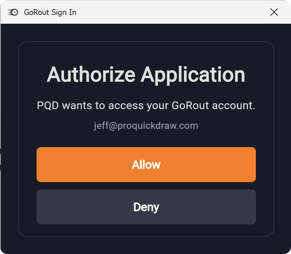
If this is your first time using it you will be prompted to authorize the access. Click Allow
Now you will see the GoRout Upload Playbook Window. You will select your new practice you created. Once you do on the right you will see a dropdown. Click the dropdown that says Offensive Practice Plays.
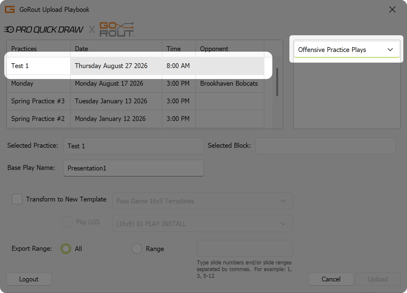
This dropdown will show you the four GoRout options. Choose the option you selected when configuring your practice. For this we used Scout Practice Offense.
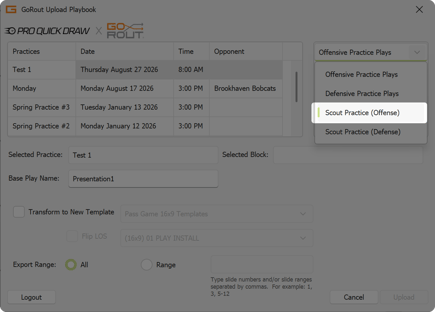
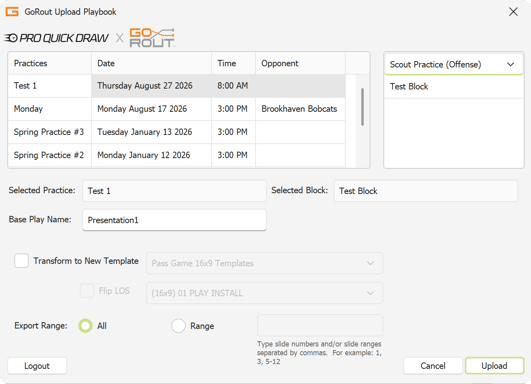
With Scout Practice (Offense) selected I can now see the practice block I created.
Below the boxes are a few text field and options. You want to be sure the right Selected Practice is there, the Selected Block is correct and the Base Play Name is set to whatever makes sense for what you are uploading. I left it as default. This play name will be how each play is labeled when it is in GoRout, we will see that shortly. You can also transform to a new template and export all slides or just a certain range.
Once everything is set click Upload
You will receive a message stating the upload was successful.
Then if you flip back to your browser and log back in or refresh your page if its still open, expand your practice and select Scout Practice that you uploaded your plays into.
%202-png.png?width=428&height=234&name=GoRout_3%20(1)%202-png.png)
That will open your Scout Practice where the practice blocks live. Select the arrow to expand the block.
%202-png.png?width=2676&height=442&name=GoRout_2%20(1)%202-png.png)
You will then see your uploaded plays directly from Playbook to use on your devices.
%202-png.png?width=526&height=222&name=GoRout_1%20(1)%202-png.png)