---
title: Getting Started using Pro Quick Draw with Visio
description: After you've downloaded, installed and activated your machine, learn the basics of Pro Quick Draw, set up your folder structure and start building your library.
---
[Skip to content](https://help.proquickdraw.com/helpcenter/getting-started-using-visio#main-content)
English
Show submenu for translations
[](https://www.proquickdraw.com?hsLang=en)
- [Homepage](http://www.proquickdraw.com/)
- [Customer Dashboard](https://dashboard.pqdcloud.com/)
Open main navigation
Close main navigation
- [Homepage](http://www.proquickdraw.com/)
- [Customer Dashboard](https://dashboard.pqdcloud.com/)
- English
Show submenu for translations
- [Contact Support](http://www.proquickdraw.com/contact-support)
[Contact Support](http://www.proquickdraw.com/contact-support?hsLang=en)
How Can We Help?
- There are no suggestions because the search field is empty.
1. [Help Center](https://help.proquickdraw.com/helpcenter?hsLang=en)
2. [Playbook (Visio)](https://help.proquickdraw.com/helpcenter/playbook-visio?hsLang=en)
3. [Getting Started](https://help.proquickdraw.com/helpcenter/playbook-visio?hsLang=en#getting-started)
August 24, 2026
# Getting Started using Pro Quick Draw with Visio
## After you've downloaded, installed and activated your machine, learn the basics of Pro Quick Draw, set up your folder structure and start building your library.
This video provides a comprehensive step-by-step guide to help you get started with Pro Quick Draw.
**Step 1: How to Turn on the "Toggle Panel"**
- On the **Home** tab of the Visio ribbon, click the **Toggle Panel.** This will open the Pro Quick Draw **Master Library** on the right side of the screen.
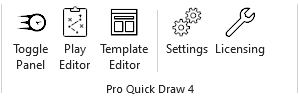
⚠️ Not seeing Pro Quick Draw in your Visio ribbon?
**[Follow these Steps to Troubleshoot](https://knowlege.proquickdraw.com/pqd-missing-from-toolbar)**
**Step 2: How to Select a Template**
- Click on **Select Template** drop down on the left side the ribbon.
- Find the template you wish to use and **click** on it.
- To the right of the selected template, click **Add** if you want to add a new page or **Update** to replace the template you are currently using or have selected.
**Step 3: How to add a Drawing into your Template**
When you add a drawing into a template, Pro Quick Draw automatically adjusts the drawing to match the dimensions of the drawing area.
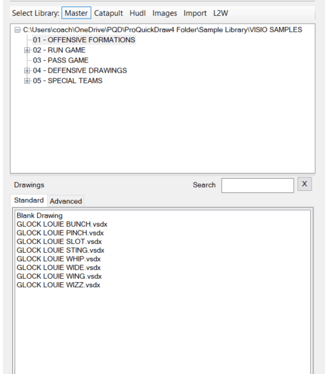
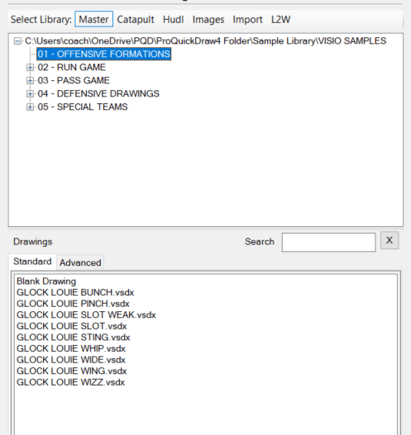
- Navigate to your **Master Library Menu** on the right side of the screen.
- Find your drawing within the folder structure, click on it and select the **Add Button** at the bottom on library (double-click file to also add).
**Step 4: How to Edit Drawing**
****
- Select the **drawing** inside the template with a single-click.
- Click the **Edit** button inside the Pro Quick Draw tab.
- This will open the drawing and allow you to **modify** the diagram.
- **Save** and close the drawing.
- The drawing will update in the template and be updated in your Master Library for future use.
**Step 5: How to create a new drawing using the Save As button**
You can rename and create a new drawing based on an existing one from your library. To do this, locate the drawing you wish to use as a foundation by selecting it from the Master Library Menu.
****
Add the drawing to the template by clicking **Add** or double-clicking on the file.
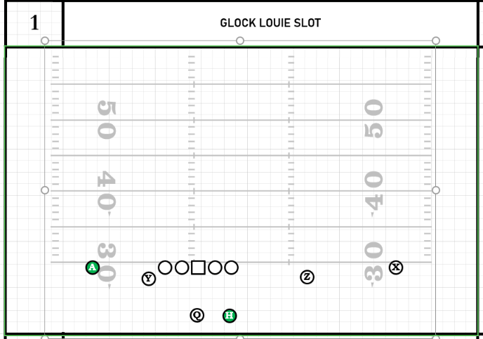
Select the drawing by clicking any object inside the drawing.
**Note:** The drawing is properly selected when a green border surrounds it.
Navigate to the top Pro Quick Draw Toolbar and select the **Save As** Button.

Enter a name for the new file you wish to create, ensuring it is saved in the appropriate folder.

Press **Save** and build the drawing

Exit out of the file by clicking the bottom close button **(X)** in the top right hand corner and **Save Your Changes**
**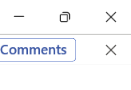**
Note: By selecting the bottom X it only closes current window you're in. If you choose the X at the top that will close all Visio windows.
The selected drawing has now been updated within the template and successfully added to your **Master Library** in the designated folder where it was saved.
### Next Steps: [How to Select a Template (Visio)](https://help.proquickdraw.com/helpcenter/select-a-template-visio?hsLang=en)
- [Account & Dashboard Setup](https://help.proquickdraw.com/helpcenter/account-dashboard-setup?hsLang=en#main-content)
- [Dashboard Management](https://help.proquickdraw.com/helpcenter/account-dashboard-setup?hsLang=en#dashboard-management)
- [Subscription Management](https://help.proquickdraw.com/helpcenter/account-dashboard-setup?hsLang=en#subscription-management)
- [Playbook (PowerPoint)](https://help.proquickdraw.com/helpcenter/playbook-powerpoint?hsLang=en#main-content)
- [Set Up Installation Packages](https://help.proquickdraw.com/helpcenter/playbook-powerpoint?hsLang=en#set-up-installation-packages)
- [Configure Your Libraries](https://help.proquickdraw.com/helpcenter/playbook-powerpoint?hsLang=en#configure-your-libraries)
- [Ribbon Bar Tools](https://help.proquickdraw.com/helpcenter/playbook-powerpoint?hsLang=en#ribbon-bar-tools)
- [Making Custom Templates](https://help.proquickdraw.com/helpcenter/playbook-powerpoint?hsLang=en#making-custom-templates)
- [Playbook (Mac)](https://help.proquickdraw.com/helpcenter/playbook-mac?hsLang=en#main-content)
- [Mac Version](https://help.proquickdraw.com/helpcenter/playbook-mac?hsLang=en#mac-version)
- [Playbook (Visio)](https://help.proquickdraw.com/helpcenter/playbook-visio?hsLang=en#main-content)
- [Getting Started](https://help.proquickdraw.com/helpcenter/playbook-visio?hsLang=en#getting-started)
- [Building My Master Library](https://help.proquickdraw.com/helpcenter/playbook-visio?hsLang=en#building-my-master-library)
- [Building My Template Library](https://help.proquickdraw.com/helpcenter/playbook-visio?hsLang=en#building-my-template-library)
- [Play Editor (PowerPoint)](https://help.proquickdraw.com/helpcenter/play-editor-powerpoint?hsLang=en)
- [Play Editor (Visio)](https://help.proquickdraw.com/helpcenter/play-editor-visio?hsLang=en)
- [Cutup Generator (Local Version)](https://help.proquickdraw.com/helpcenter/cutup-generator-local-version?hsLang=en)
- [Cutup Generator (Web Version)](https://help.proquickdraw.com/helpcenter/cutup-generator-web-version?hsLang=en#main-content)
- [Initial Setup and Getting Started](https://help.proquickdraw.com/helpcenter/cutup-generator-web-version?hsLang=en#initial-setup-and-getting-started)
- [Integrating Your Video Platform](https://help.proquickdraw.com/helpcenter/cutup-generator-web-version?hsLang=en#integrating-your-video-platform)
- [Projects](https://help.proquickdraw.com/helpcenter/cutup-generator-web-version?hsLang=en#projects)
- [Cutup Definitions](https://help.proquickdraw.com/helpcenter/cutup-generator-web-version?hsLang=en#cutup-definitions)
- [Column Sets](https://help.proquickdraw.com/helpcenter/cutup-generator-web-version?hsLang=en#column-sets)
- [Folder Rules](https://help.proquickdraw.com/helpcenter/cutup-generator-web-version?hsLang=en#folder-rules)
- [Filters](https://help.proquickdraw.com/helpcenter/cutup-generator-web-version?hsLang=en#filters)
- [Sort Rules](https://help.proquickdraw.com/helpcenter/cutup-generator-web-version?hsLang=en#sort-rules)
- [Working the Grid](https://help.proquickdraw.com/helpcenter/cutup-generator-web-version?hsLang=en#working-the-grid)
- [Watching Video](https://help.proquickdraw.com/helpcenter/cutup-generator-web-version?hsLang=en#watching-video)
- [AdHoc Playlists](https://help.proquickdraw.com/helpcenter/cutup-generator-web-version?hsLang=en#adhoc-playlists)
- [Title Slides](https://help.proquickdraw.com/helpcenter/cutup-generator-web-version?hsLang=en#title-slides)
- [Charts and Stats](https://help.proquickdraw.com/helpcenter/cutup-generator-web-version?hsLang=en#charts-and-stats)
- [Settings and Troubleshooting](https://help.proquickdraw.com/helpcenter/cutup-generator-web-version?hsLang=en#settings-and-troubleshooting)
- [Accel](https://help.proquickdraw.com/helpcenter/accel?hsLang=en)
- [Catapult Integration](https://help.proquickdraw.com/helpcenter/catapult-integration?hsLang=en)
- [Hudl Integration](https://help.proquickdraw.com/helpcenter/hudl-integration?hsLang=en)
- [Qwikcut Integration](https://help.proquickdraw.com/helpcenter/qwikcut-integration?hsLang=en)
- [GoArmy Edge Integration](https://help.proquickdraw.com/helpcenter/goarmy-edge-integration?hsLang=en)
- [GoRout Integration](https://help.proquickdraw.com/helpcenter/gorout-integration?hsLang=en)
- [Troubleshooting & FAQs](https://help.proquickdraw.com/helpcenter/troubleshooting-faqs?hsLang=en#main-content)
- [Download & Installation](https://help.proquickdraw.com/helpcenter/troubleshooting-faqs?hsLang=en#download-installation)
- [Templates](https://help.proquickdraw.com/helpcenter/troubleshooting-faqs?hsLang=en#templates)
- [Master Library](https://help.proquickdraw.com/helpcenter/troubleshooting-faqs?hsLang=en#master-library)
- [Formatting](https://help.proquickdraw.com/helpcenter/troubleshooting-faqs?hsLang=en#formatting)
- [Integrations](https://help.proquickdraw.com/helpcenter/troubleshooting-faqs?hsLang=en#integrations)
- [Release Notes](https://help.proquickdraw.com/helpcenter/release-notes?hsLang=en)
[](https://WWW.PROQUICKDRAW.COM)
Copyright © 2026, Pro Quick Draw
Follow us on Social Channels for important announcements and workflow ideas.
Cookie Settings