---
title: Managing your Field Background Image in Playbook
description: How to set and manage the football field background image used behind your play diagrams.
---
[Skip to content](https://help.proquickdraw.com/helpcenter/field-background-powerpoint#main-content)
English
Show submenu for translations
[](https://www.proquickdraw.com?hsLang=en)
- [Homepage](http://www.proquickdraw.com/)
- [Customer Dashboard](https://dashboard.pqdcloud.com/)
Open main navigation
Close main navigation
- [Homepage](http://www.proquickdraw.com/)
- [Customer Dashboard](https://dashboard.pqdcloud.com/)
- English
Show submenu for translations
- [Contact Support](http://www.proquickdraw.com/contact-support)
[Contact Support](http://www.proquickdraw.com/contact-support?hsLang=en)
How Can We Help?
- There are no suggestions because the search field is empty.
1. [Help Center](https://help.proquickdraw.com/helpcenter?hsLang=en)
2. [Playbook (PowerPoint)](https://help.proquickdraw.com/helpcenter/playbook-powerpoint?hsLang=en)
August 7, 2026
# Managing your Field Background Image in Playbook
## When creating your drawings, you can select from a variety of pre-installed field backgrounds included with the download.
There are two ways you can set a field background image in PQD. First, you can simply add a slide background using our png field background images when dealing with plays you are adding from your playbook. Second, Play Editor allows you to select a preferred field background for your drawings. This ensures that any future plays you build on that drawing will automatically use the background you originally chose. Instructions and videos for both methods are below.
### [How to Set a Field Background Using PNG Images](https://help.proquickdraw.com/helpcenter/field-background-powerpoint#pngimages)
### [How to Set a Field Background to Play Editor](https://help.proquickdraw.com/helpcenter/field-background-powerpoint#images-pe)
#### Set Field Background using PNG Images
First you want to download the preset png background images
Open PowerPoint and create a blank presentation
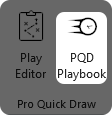
On the ribbon bar, select **PQD Playbook**
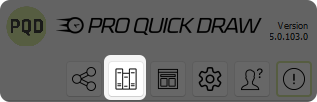
Select the **Libraries** button
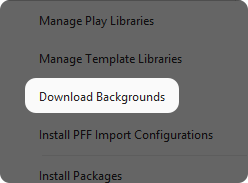
Select **Download Backgrounds**
First you want to choose the field backgrounds labeled **(PNG)**, then make sure **PQD Folder** is selected and click the **Download Selected** button
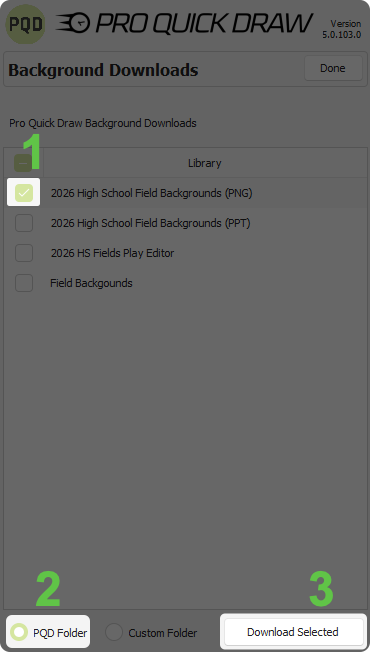
Once that download is complete choose **Done**
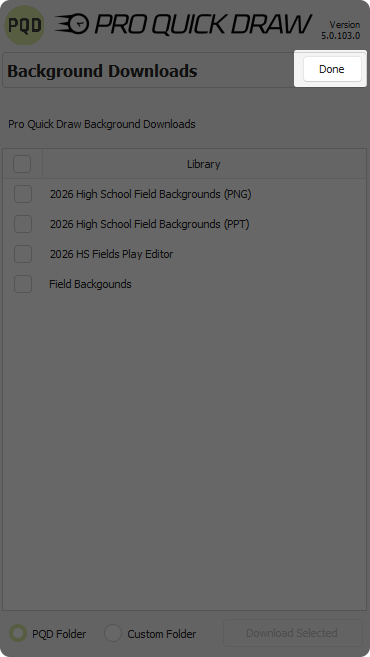
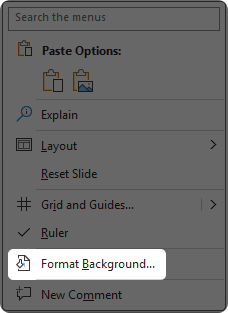
Now you can use the field backgrounds
To do so **right-click** on your slide and choose **Format Background**
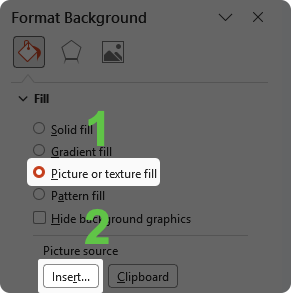
Choose **Picture or texture fill** then click **Insert**
****
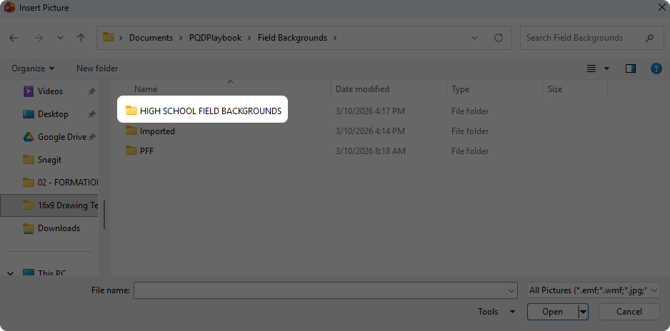
Once File Explorer opens, navigate to your PQDPlaybook folder where you installed the field backgrounds images (By default this is Documents \> PQDPlaybook unless you chose to install the images elsewhere) and double-click Field Backgrounds
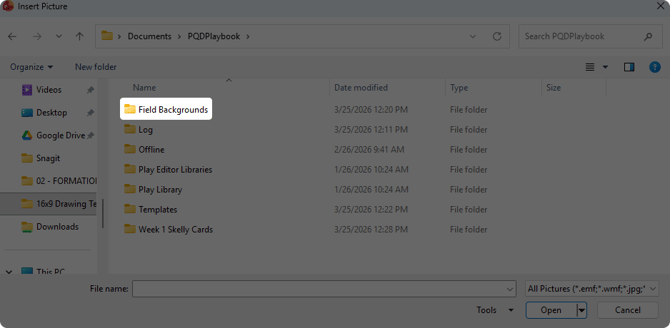
Then double-click HIGH SCHOOL FIELD BACKGROUNDS
Then you would **choose the field background** you wanted and click **Insert**
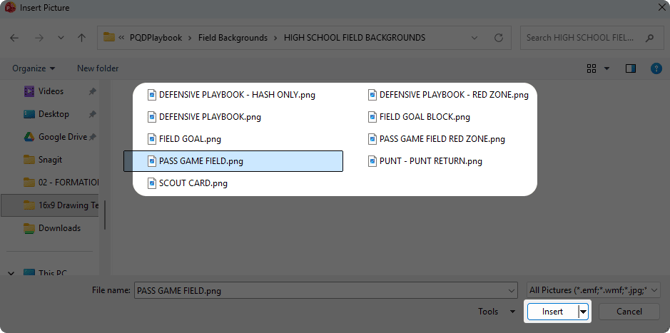
Now your slide will have that field background set
Here is a video you can watch showing you these steps above:
---
#### Set Field Background to Play Editor
First you want to install the background files for use in Play Editor
On the ribbon bar, select **PQD Playbook**

Select the **Libraries** button

Select **Download Backgrounds**

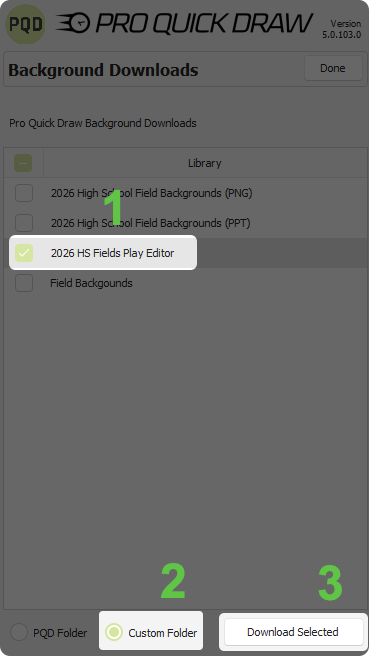
First you want to choose the field backgrounds labeled **(Play Editor)**, then choose **Custom Folder** and click the **Download Selected** button (we chose custom folder because being that its dealing with Play Editor we want to put the field backgrounds in the Play Editor Drawings folder specifically
Once you click Download Selected a File Explorer window will open. Navigate to your PQDPlaybook folder and double-click **Play Editor Libraries**
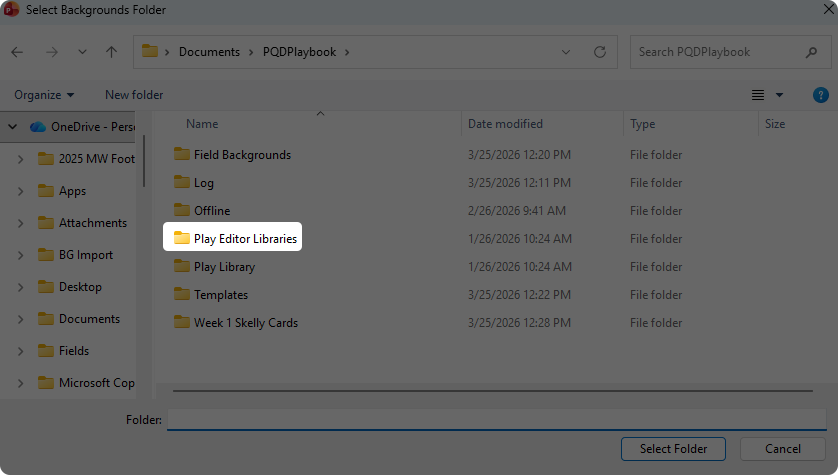
Double-click on **Drawings**
**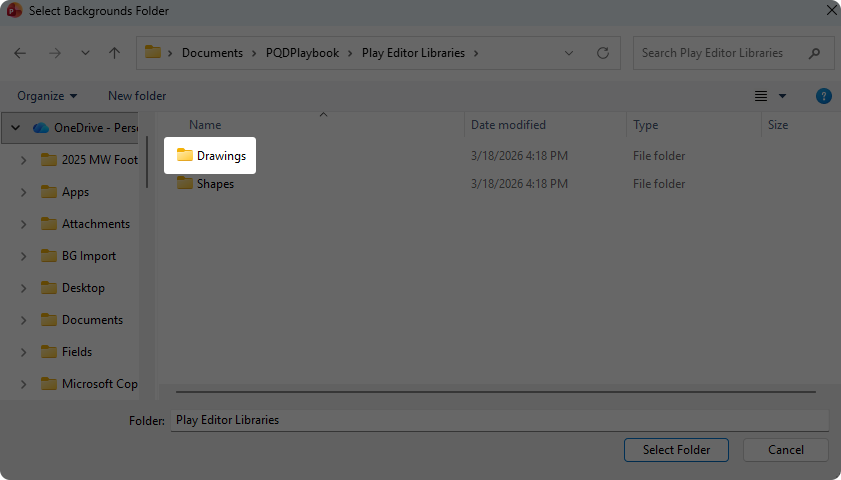**
After you double-click the Drawings folder click the **Select Folder** button
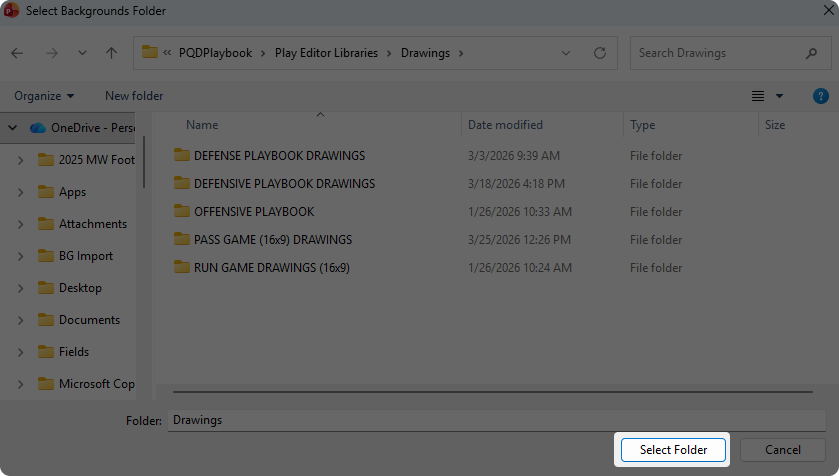
Now we will add them to Play Editor to use
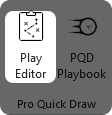
Open **Play Editor** on the ribbon bar
Click the **3 dots** button
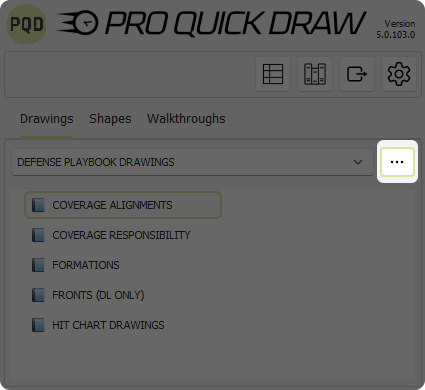
Click the **Add Drawing Library** button
**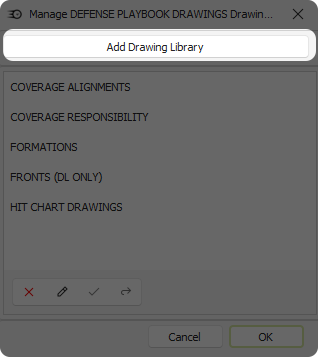**
Navigate to the Drawings folder where we installed the Play Editor field background file, **select the .pptx backgrounds file** and click **Open**
**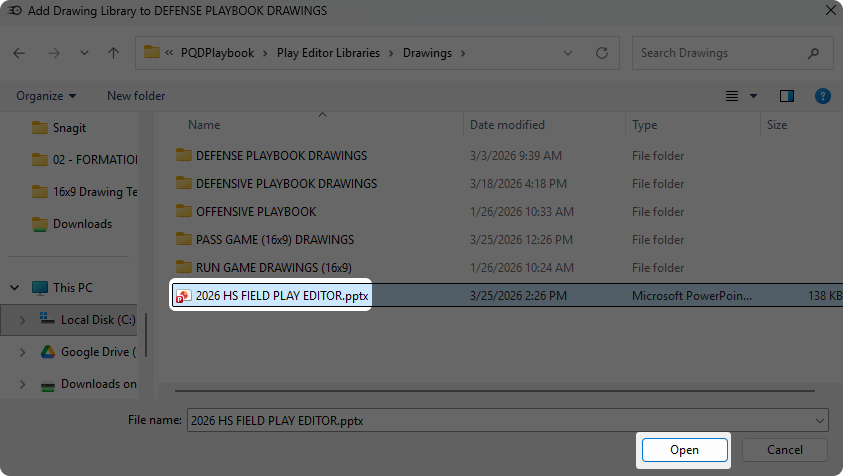**
You should now see that the file has been added, click **OK**
**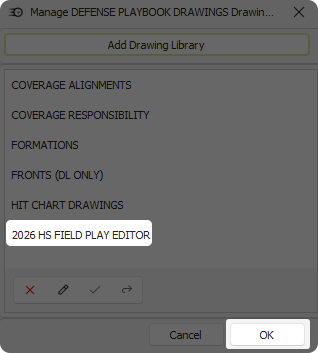**
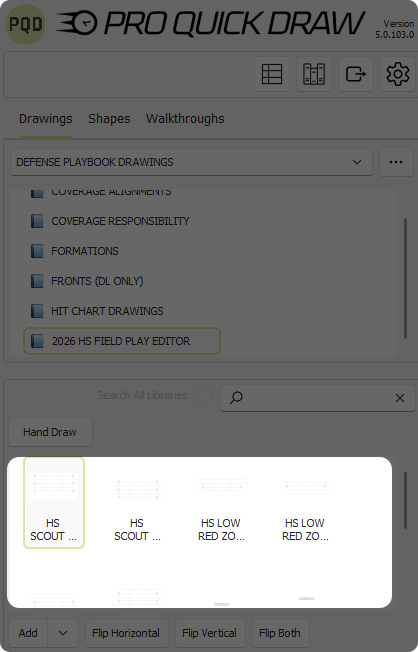
You should now see the HS FIELD PLAY EDITOR library in your Play Editor library list. Select it, then at the bottom of Play Editor you will see the different field backgrounds. Simply double click on the field background you want to add to your slide and it will place it as the background on the slide
Here is a video you can watch showing you these steps above:
- [Account & Dashboard Setup](https://help.proquickdraw.com/helpcenter/account-dashboard-setup?hsLang=en#main-content)
- [Dashboard Management](https://help.proquickdraw.com/helpcenter/account-dashboard-setup?hsLang=en#dashboard-management)
- [Subscription Management](https://help.proquickdraw.com/helpcenter/account-dashboard-setup?hsLang=en#subscription-management)
- [Playbook (PowerPoint)](https://help.proquickdraw.com/helpcenter/playbook-powerpoint?hsLang=en#main-content)
- [Set Up Installation Packages](https://help.proquickdraw.com/helpcenter/playbook-powerpoint?hsLang=en#set-up-installation-packages)
- [Configure Your Libraries](https://help.proquickdraw.com/helpcenter/playbook-powerpoint?hsLang=en#configure-your-libraries)
- [Ribbon Bar Tools](https://help.proquickdraw.com/helpcenter/playbook-powerpoint?hsLang=en#ribbon-bar-tools)
- [Making Custom Templates](https://help.proquickdraw.com/helpcenter/playbook-powerpoint?hsLang=en#making-custom-templates)
- [Playbook (Mac)](https://help.proquickdraw.com/helpcenter/playbook-mac?hsLang=en#main-content)
- [Mac Version](https://help.proquickdraw.com/helpcenter/playbook-mac?hsLang=en#mac-version)
- [Playbook (Visio)](https://help.proquickdraw.com/helpcenter/playbook-visio?hsLang=en#main-content)
- [Getting Started](https://help.proquickdraw.com/helpcenter/playbook-visio?hsLang=en#getting-started)
- [Building My Master Library](https://help.proquickdraw.com/helpcenter/playbook-visio?hsLang=en#building-my-master-library)
- [Building My Template Library](https://help.proquickdraw.com/helpcenter/playbook-visio?hsLang=en#building-my-template-library)
- [Play Editor (PowerPoint)](https://help.proquickdraw.com/helpcenter/play-editor-powerpoint?hsLang=en)
- [Play Editor (Visio)](https://help.proquickdraw.com/helpcenter/play-editor-visio?hsLang=en)
- [Cutup Generator (Local Version)](https://help.proquickdraw.com/helpcenter/cutup-generator-local-version?hsLang=en)
- [Cutup Generator (Web Version)](https://help.proquickdraw.com/helpcenter/cutup-generator-web-version?hsLang=en#main-content)
- [Initial Setup and Getting Started](https://help.proquickdraw.com/helpcenter/cutup-generator-web-version?hsLang=en#initial-setup-and-getting-started)
- [Integrating Your Video Platform](https://help.proquickdraw.com/helpcenter/cutup-generator-web-version?hsLang=en#integrating-your-video-platform)
- [Projects](https://help.proquickdraw.com/helpcenter/cutup-generator-web-version?hsLang=en#projects)
- [Cutup Definitions](https://help.proquickdraw.com/helpcenter/cutup-generator-web-version?hsLang=en#cutup-definitions)
- [Column Sets](https://help.proquickdraw.com/helpcenter/cutup-generator-web-version?hsLang=en#column-sets)
- [Folder Rules](https://help.proquickdraw.com/helpcenter/cutup-generator-web-version?hsLang=en#folder-rules)
- [Filters](https://help.proquickdraw.com/helpcenter/cutup-generator-web-version?hsLang=en#filters)
- [Sort Rules](https://help.proquickdraw.com/helpcenter/cutup-generator-web-version?hsLang=en#sort-rules)
- [Working the Grid](https://help.proquickdraw.com/helpcenter/cutup-generator-web-version?hsLang=en#working-the-grid)
- [Watching Video](https://help.proquickdraw.com/helpcenter/cutup-generator-web-version?hsLang=en#watching-video)
- [AdHoc Playlists](https://help.proquickdraw.com/helpcenter/cutup-generator-web-version?hsLang=en#adhoc-playlists)
- [Title Slides](https://help.proquickdraw.com/helpcenter/cutup-generator-web-version?hsLang=en#title-slides)
- [Charts and Stats](https://help.proquickdraw.com/helpcenter/cutup-generator-web-version?hsLang=en#charts-and-stats)
- [Settings and Troubleshooting](https://help.proquickdraw.com/helpcenter/cutup-generator-web-version?hsLang=en#settings-and-troubleshooting)
- [Accel](https://help.proquickdraw.com/helpcenter/accel?hsLang=en)
- [Catapult Integration](https://help.proquickdraw.com/helpcenter/catapult-integration?hsLang=en)
- [Hudl Integration](https://help.proquickdraw.com/helpcenter/hudl-integration?hsLang=en)
- [Qwikcut Integration](https://help.proquickdraw.com/helpcenter/qwikcut-integration?hsLang=en)
- [GoArmy Edge Integration](https://help.proquickdraw.com/helpcenter/goarmy-edge-integration?hsLang=en)
- [GoRout Integration](https://help.proquickdraw.com/helpcenter/gorout-integration?hsLang=en)
- [Troubleshooting & FAQs](https://help.proquickdraw.com/helpcenter/troubleshooting-faqs?hsLang=en#main-content)
- [Download & Installation](https://help.proquickdraw.com/helpcenter/troubleshooting-faqs?hsLang=en#download-installation)
- [Templates](https://help.proquickdraw.com/helpcenter/troubleshooting-faqs?hsLang=en#templates)
- [Master Library](https://help.proquickdraw.com/helpcenter/troubleshooting-faqs?hsLang=en#master-library)
- [Formatting](https://help.proquickdraw.com/helpcenter/troubleshooting-faqs?hsLang=en#formatting)
- [Integrations](https://help.proquickdraw.com/helpcenter/troubleshooting-faqs?hsLang=en#integrations)
- [Release Notes](https://help.proquickdraw.com/helpcenter/release-notes?hsLang=en)
[](https://WWW.PROQUICKDRAW.COM)
Copyright © 2026, Pro Quick Draw
Follow us on Social Channels for important announcements and workflow ideas.
Cookie Settings
```json
{
"@context" : "https://schema.org",
"@type" : "VideoObject",
"caption" : {
"@type" : "MediaObject",
"contentUrl" : "https://help.proquickdraw.com/media-transcripts/209941324656/en.vtt",
"inLanguage" : "en",
"name" : "en Captions"
},
"contentUrl" : "https://7363726.fs1.hubspotusercontent-na1.net/hubfs/7363726/video_assets/209941324656/inherited/web_optimized.mp4",
"dateModified" : "2026-03-25T18:40:02.518Z",
"duration" : "PT1M6S",
"height" : 1080,
"name" : "Add Background from Downloads",
"thumbnailUrl" : "https://7363726.fs1.hubspotusercontent-na1.net/hubfs/7363726/Add%20Background%20from%20Downloads.mp4/medium.jpg",
"uploadDate" : "2026-03-25T18:39:51.641Z",
"width" : 1920
}
```
```json
{
"@context" : "https://schema.org",
"@type" : "VideoObject",
"caption" : {
"@type" : "MediaObject",
"contentUrl" : "https://help.proquickdraw.com/media-transcripts/209941362569/en.vtt",
"inLanguage" : "en",
"name" : "en Captions"
},
"contentUrl" : "https://7363726.fs1.hubspotusercontent-na1.net/hubfs/7363726/video_assets/209941362569/inherited/web_optimized.mp4",
"dateModified" : "2026-03-25T18:40:22.350Z",
"duration" : "PT1M31S",
"height" : 1080,
"name" : "Add Backgrounds to PE",
"thumbnailUrl" : "https://7363726.fs1.hubspotusercontent-na1.net/hubfs/7363726/Add%20Backgrounds%20to%20PE.mp4/medium.jpg",
"uploadDate" : "2026-03-25T18:40:00.805Z",
"width" : 1920
}
```