---
title: Download, Install and License Pro Quick Draw 365 (Mac/Online Version)
description: How to download, install, and license Pro Quick Draw 365, the Mac and online version of the app.
---
[Skip to content](https://help.proquickdraw.com/helpcenter/download-install-pqd-365#main-content)
English
Show submenu for translations
[](https://www.proquickdraw.com?hsLang=en)
- [Homepage](http://www.proquickdraw.com/)
- [Customer Dashboard](https://dashboard.pqdcloud.com/)
Open main navigation
Close main navigation
- [Homepage](http://www.proquickdraw.com/)
- [Customer Dashboard](https://dashboard.pqdcloud.com/)
- English
Show submenu for translations
- [Contact Support](http://www.proquickdraw.com/contact-support)
[Contact Support](http://www.proquickdraw.com/contact-support?hsLang=en)
How Can We Help?
- There are no suggestions because the search field is empty.
1. [Help Center](https://help.proquickdraw.com/helpcenter?hsLang=en)
2. [Playbook (Mac)](https://help.proquickdraw.com/helpcenter/playbook-mac?hsLang=en)
3. [Mac Version](https://help.proquickdraw.com/helpcenter/playbook-mac?hsLang=en#mac-version)
August 7, 2026
# Download, Install and License Pro Quick Draw 365 (Mac/Online Version)
## Ensure your system is ready to install Pro Quick Draw by first checking system requirements and Following the Step-by-Step Set-Up Process.
#### **System and Software Requirements**
✅ Active Internet Connection
✅ Pro Quick Draw 365 (Mac Version) License
✅ Microsoft 365 Account
✅ Minimum OS Requirements: MacOS 10.13 (Ventura) or later
✅ Current Working PowerPoint Version: 16.95 (25030928)
✅ Microsoft OneDrive
#### **Check PowerPoint Version**
Before starting you will need to check the version of PowerPoint for Mac installed on your machine. To do that start PowerPoint and select About PowerPoint.
**Note:** There is a known bug with PowerPoint Version 16.94. If you have this version please upgrade to the latest version of PowerPoint.
####  **Setup Working Folder Structure**
You need to create your folder structure for libraries in OneDrive
1. Open Finder on your Mac
2. On the left sidebar select OneDrive from the Locations section
3. Create a new folder named Pro Quick Draw 365
#### **Verify your Pro Quick Draw Account has the 365 Product Active**
Login to dashboard.pqdcloud.com
Click on Account
Verify Pro Quick Draw 365 is showing as active
If not, please reach out to support [**support@proquickdraw.com**](mailto:support@proquickdraw.com)

#### **Download and Install Pro Quick Draw 365 in PowerPoint**
1. Open PowerPoint on your Mac

2. Start a Blank Presentation
3. Select the Add-ins Button on the Ribbon Bar

4. Select the More Add-ins button
****
5. Select the More Add-ins button
6. Type pro quick draw in the Search bar and click the magnifying glass to search or tap return
****
7. Click the Add button next to Pro Quick Draw
8. Click the Continue Button
****
### **Set Up of Pro Quick Draw 365**
#### **Activation of Pro Quick Draw 365**
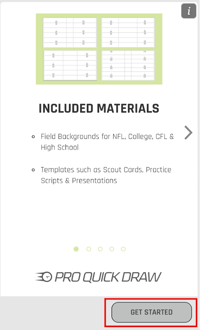
1. The PQD Sidebar will now load - Click the Get Started button
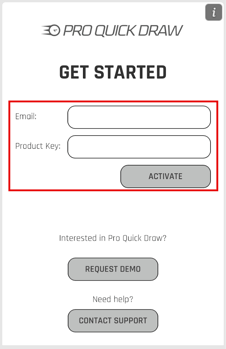
2. Retrieve and copy your Product Key to activate the product
1. Go to [dashboard.pqdcloud.com](https://dashboard.pqdcloud.com/)
2. Login using your PQD account email address and password

3. Click on the My License menu item on the left

4. Under the My Pro Quick Draw for Office 365 License section click on the Copy Licence Key button under Key Options

3. Enter your email address associated with your PQD account and your Product Key from the PQD Dashboard then click the Activate button
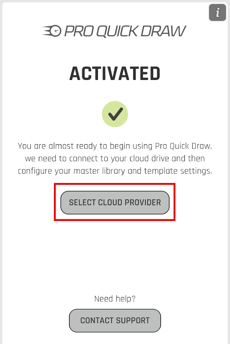
4. Click the Select Cloud Provider button
### **Setup Cloud Storage**
1. Click Microsoft OneDrive - Then Click the Connect button
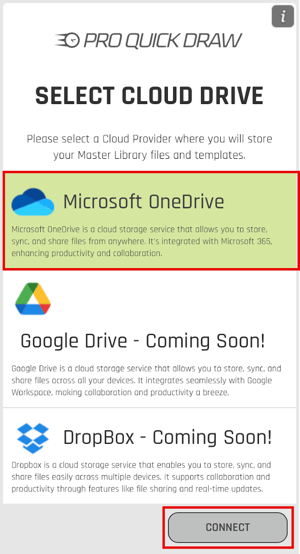
2. Enter OneDrive Credentials (if PowerPoint already recognizes your credentials it will automatically initialize).
### **Import Libraries**
You need to create your folder structure for libraries in OneDrive
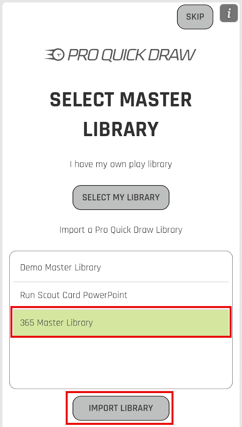
1. Select 365 Master Library and click the Import Library button
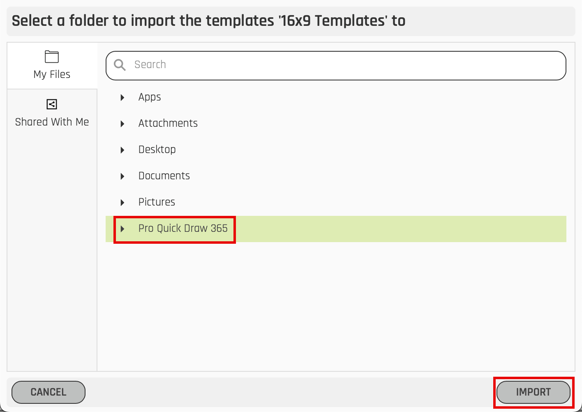
2. Select a folder in OneDrive that you want to import the Templates Library into under you main PQD folder and click the Import button
3. You should receive the Success! Message, click the OK button

### **Import Templates**
You need to create your folder structure for libraries in OneDrive
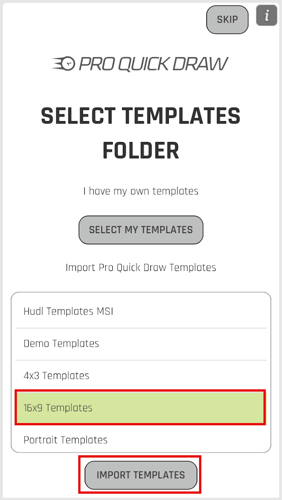
1. Select a template of your choosing and click the Import Templates button
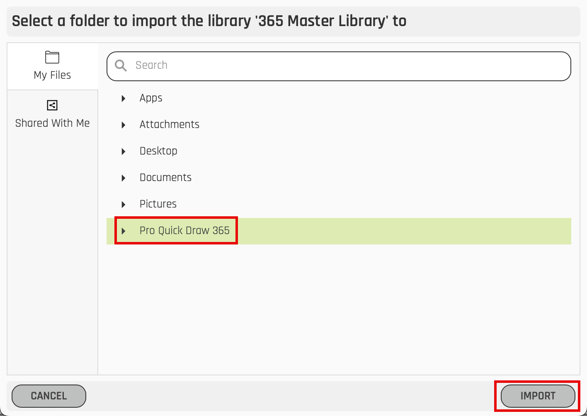
2. Select a folder in OneDrive that you want to import the 365 Master Library into under you main PQD folder and click the Import button
3. You should receive the Success! Message, click the OK button

### **Import Shapes LIbrary**
1. Select a Shapes Library from the Import Pro Quick Draw Shape Library section and click the Import Shape Library button
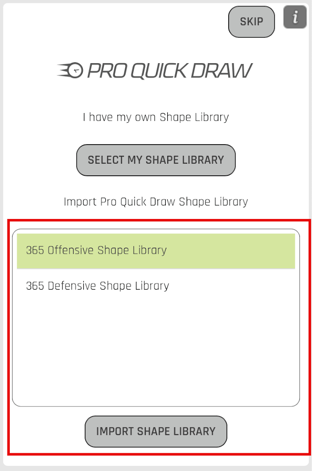
2. Select a folder in OneDrive that you want to import the Shapes Library into under you main PQD folder and click the Import button
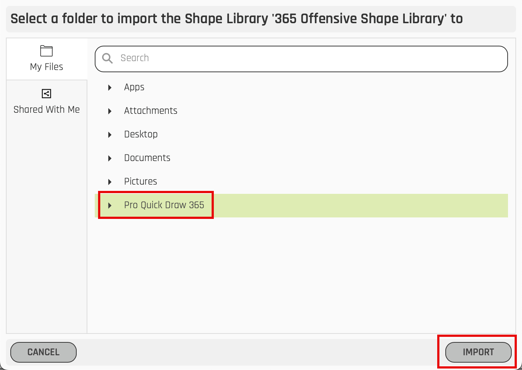
3. You should see the Success! Box, click the OK button

4. Click the Start button
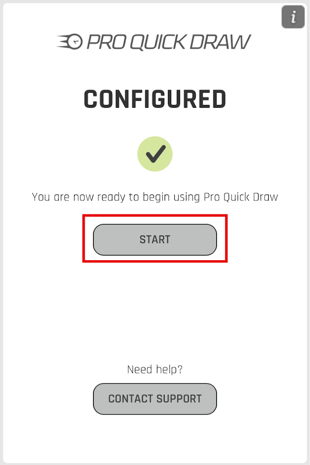
**You have now set up and configured Pro Quick Draw 365 for Mac!**
- [Account & Dashboard Setup](https://help.proquickdraw.com/helpcenter/account-dashboard-setup?hsLang=en#main-content)
- [Dashboard Management](https://help.proquickdraw.com/helpcenter/account-dashboard-setup?hsLang=en#dashboard-management)
- [Subscription Management](https://help.proquickdraw.com/helpcenter/account-dashboard-setup?hsLang=en#subscription-management)
- [Playbook (PowerPoint)](https://help.proquickdraw.com/helpcenter/playbook-powerpoint?hsLang=en#main-content)
- [Set Up Installation Packages](https://help.proquickdraw.com/helpcenter/playbook-powerpoint?hsLang=en#set-up-installation-packages)
- [Configure Your Libraries](https://help.proquickdraw.com/helpcenter/playbook-powerpoint?hsLang=en#configure-your-libraries)
- [Ribbon Bar Tools](https://help.proquickdraw.com/helpcenter/playbook-powerpoint?hsLang=en#ribbon-bar-tools)
- [Making Custom Templates](https://help.proquickdraw.com/helpcenter/playbook-powerpoint?hsLang=en#making-custom-templates)
- [Playbook (Mac)](https://help.proquickdraw.com/helpcenter/playbook-mac?hsLang=en#main-content)
- [Mac Version](https://help.proquickdraw.com/helpcenter/playbook-mac?hsLang=en#mac-version)
- [Playbook (Visio)](https://help.proquickdraw.com/helpcenter/playbook-visio?hsLang=en#main-content)
- [Getting Started](https://help.proquickdraw.com/helpcenter/playbook-visio?hsLang=en#getting-started)
- [Building My Master Library](https://help.proquickdraw.com/helpcenter/playbook-visio?hsLang=en#building-my-master-library)
- [Building My Template Library](https://help.proquickdraw.com/helpcenter/playbook-visio?hsLang=en#building-my-template-library)
- [Play Editor (PowerPoint)](https://help.proquickdraw.com/helpcenter/play-editor-powerpoint?hsLang=en)
- [Play Editor (Visio)](https://help.proquickdraw.com/helpcenter/play-editor-visio?hsLang=en)
- [Cutup Generator (Local Version)](https://help.proquickdraw.com/helpcenter/cutup-generator-local-version?hsLang=en)
- [Cutup Generator (Web Version)](https://help.proquickdraw.com/helpcenter/cutup-generator-web-version?hsLang=en#main-content)
- [Initial Setup and Getting Started](https://help.proquickdraw.com/helpcenter/cutup-generator-web-version?hsLang=en#initial-setup-and-getting-started)
- [Integrating Your Video Platform](https://help.proquickdraw.com/helpcenter/cutup-generator-web-version?hsLang=en#integrating-your-video-platform)
- [Projects](https://help.proquickdraw.com/helpcenter/cutup-generator-web-version?hsLang=en#projects)
- [Cutup Definitions](https://help.proquickdraw.com/helpcenter/cutup-generator-web-version?hsLang=en#cutup-definitions)
- [Column Sets](https://help.proquickdraw.com/helpcenter/cutup-generator-web-version?hsLang=en#column-sets)
- [Folder Rules](https://help.proquickdraw.com/helpcenter/cutup-generator-web-version?hsLang=en#folder-rules)
- [Filters](https://help.proquickdraw.com/helpcenter/cutup-generator-web-version?hsLang=en#filters)
- [Sort Rules](https://help.proquickdraw.com/helpcenter/cutup-generator-web-version?hsLang=en#sort-rules)
- [Working the Grid](https://help.proquickdraw.com/helpcenter/cutup-generator-web-version?hsLang=en#working-the-grid)
- [Watching Video](https://help.proquickdraw.com/helpcenter/cutup-generator-web-version?hsLang=en#watching-video)
- [AdHoc Playlists](https://help.proquickdraw.com/helpcenter/cutup-generator-web-version?hsLang=en#adhoc-playlists)
- [Title Slides](https://help.proquickdraw.com/helpcenter/cutup-generator-web-version?hsLang=en#title-slides)
- [Charts and Stats](https://help.proquickdraw.com/helpcenter/cutup-generator-web-version?hsLang=en#charts-and-stats)
- [Settings and Troubleshooting](https://help.proquickdraw.com/helpcenter/cutup-generator-web-version?hsLang=en#settings-and-troubleshooting)
- [Accel](https://help.proquickdraw.com/helpcenter/accel?hsLang=en)
- [Catapult Integration](https://help.proquickdraw.com/helpcenter/catapult-integration?hsLang=en)
- [Hudl Integration](https://help.proquickdraw.com/helpcenter/hudl-integration?hsLang=en)
- [Qwikcut Integration](https://help.proquickdraw.com/helpcenter/qwikcut-integration?hsLang=en)
- [GoArmy Edge Integration](https://help.proquickdraw.com/helpcenter/goarmy-edge-integration?hsLang=en)
- [GoRout Integration](https://help.proquickdraw.com/helpcenter/gorout-integration?hsLang=en)
- [Troubleshooting & FAQs](https://help.proquickdraw.com/helpcenter/troubleshooting-faqs?hsLang=en#main-content)
- [Download & Installation](https://help.proquickdraw.com/helpcenter/troubleshooting-faqs?hsLang=en#download-installation)
- [Templates](https://help.proquickdraw.com/helpcenter/troubleshooting-faqs?hsLang=en#templates)
- [Master Library](https://help.proquickdraw.com/helpcenter/troubleshooting-faqs?hsLang=en#master-library)
- [Formatting](https://help.proquickdraw.com/helpcenter/troubleshooting-faqs?hsLang=en#formatting)
- [Integrations](https://help.proquickdraw.com/helpcenter/troubleshooting-faqs?hsLang=en#integrations)
- [Release Notes](https://help.proquickdraw.com/helpcenter/release-notes?hsLang=en)
[](https://WWW.PROQUICKDRAW.COM)
Copyright © 2026, Pro Quick Draw
Follow us on Social Channels for important announcements and workflow ideas.
Cookie Settings
```json
{
"@context" : "https://schema.org",
"@type" : "VideoObject",
"contentUrl" : "https://stream.mux.com/vFs9gEfK8KJn8yr00FZDeJQ02pTnpbPnSYkMSeZ702wNK4/capped-1080p.mp4",
"dateModified" : "2025-03-19T16:54:42.806Z",
"duration" : "PT7M46.102S",
"height" : 1026,
"name" : "How to Download, Install & License PQD (Mac Version)",
"thumbnailUrl" : "https://7363726.fs1.hubspotusercontent-na1.net/hubfs/7363726/How%20to%20Download%2c%20Install%20&%20License%20PQD%20(Mac%20Version).mp4/medium.jpg",
"uploadDate" : "2025-03-19T15:07:35.335Z",
"width" : 1728
}
```